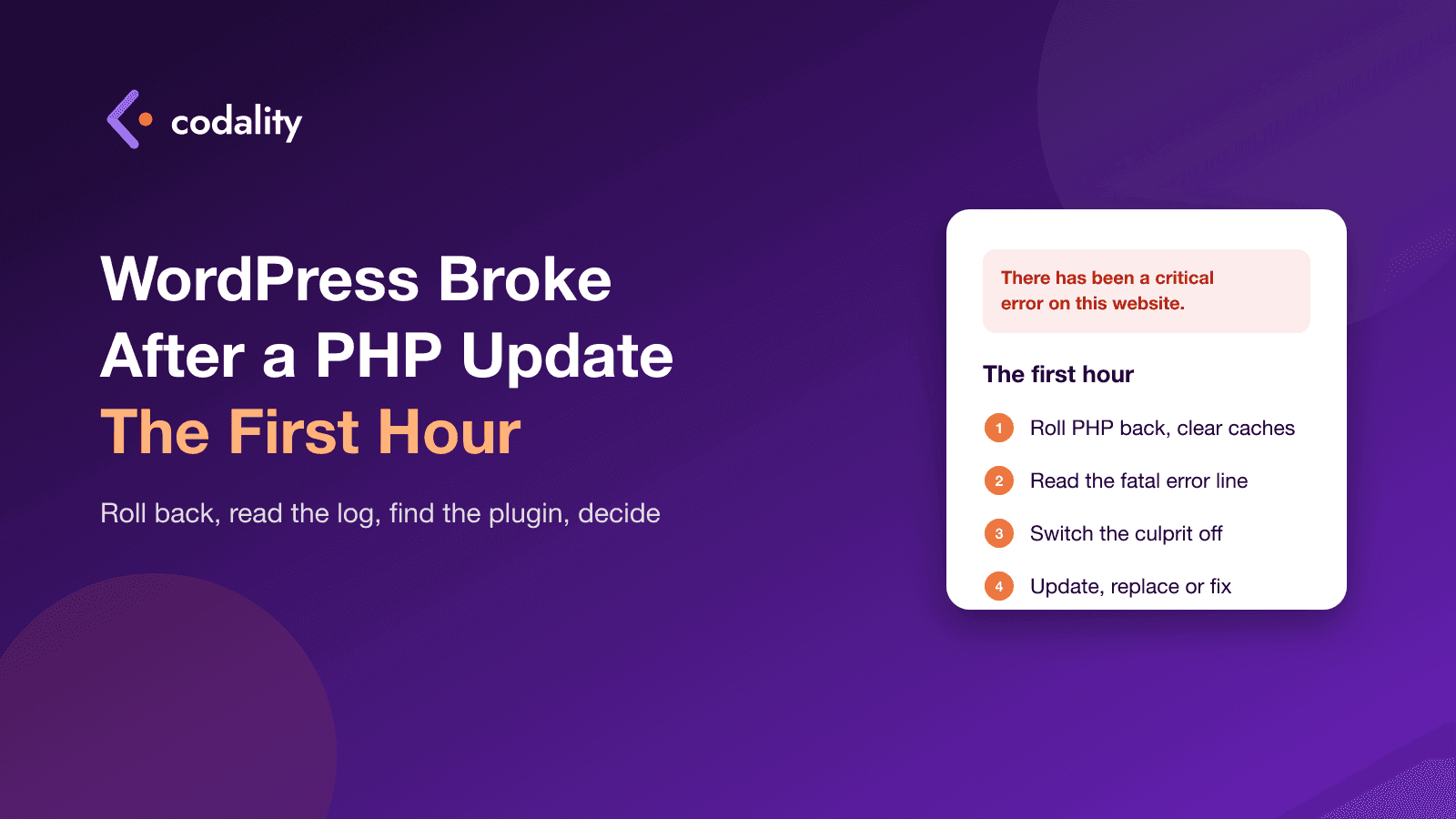
The hosting panel said PHP 7.4 was no longer supported. You picked 8.2 or 8.4, clicked save, and opened the site. Now it says "There has been a critical error on this website". Or it's a white page. Or the shop loads but nobody can check out.
This happens a lot right now. Since the critical PHP vulnerabilities of 21 October, hosts have been retiring old versions and owners have been updating in a hurry. The good news: in most cases the site isn't damaged. One plugin or one theme file uses something the new PHP no longer has, and WordPress stopped rather than run with it. Here is what to do in the first hour, in order.
Minute 0 to 5: what the symptom is telling you
Before touching anything, look at exactly what the site shows. It narrows the search a lot.
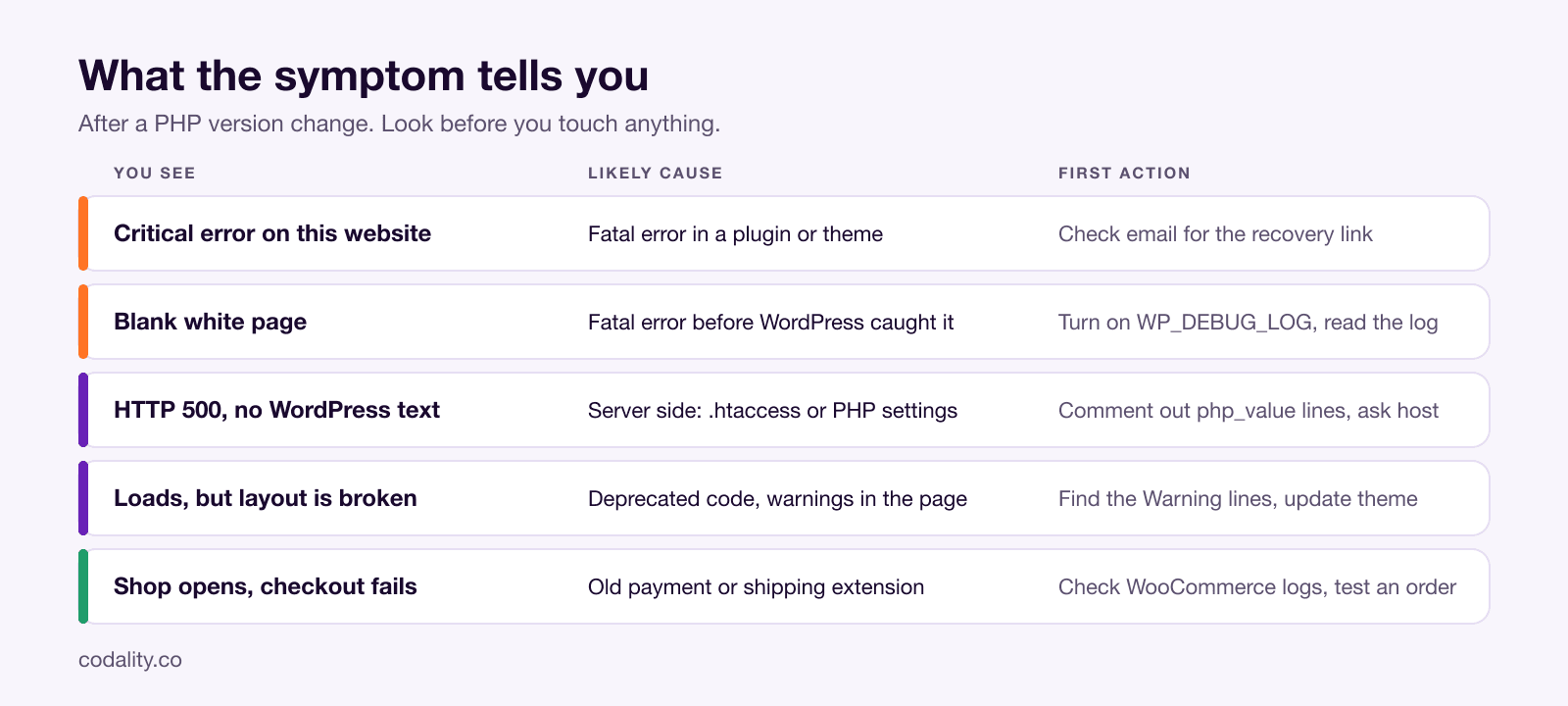
"There has been a critical error on this website." WordPress caught a fatal PHP error. Since version 5.2 it also sends an email to the site admin address with the subject "Your site is experiencing a technical issue". That email names the plugin or theme that failed and contains a recovery-mode link. Check the inbox, including spam, before anything else.
A blank white page. The same kind of fatal error, but one that happened before WordPress could catch it, or on an older WordPress with error display off. You'll need the log (step 2).
HTTP 500, "Internal Server Error", with no WordPress wording. Usually not a plugin. The web server couldn't start PHP at all: a wrong handler, an .htaccess file with directives for the old PHP module, or a PHP-FPM pool that didn't come up. Step 4 covers it.
The site loads but looks wrong. Missing blocks, a form that doesn't send, warnings printed at the top of the page. That's deprecated code in the theme or a plugin that half-works. Annoying, not an emergency, and the same method finds it.
The shop opens, checkout doesn't. WooCommerce itself is fine on PHP 8. A payment or shipping extension isn't. Step 5.
Minute 5 to 10: roll PHP back
In the hosting panel, switch PHP back to the version you had. On cPanel it's "Select PHP Version" or "MultiPHP Manager"; on Plesk it's under PHP Settings for the domain; most managed hosts have a dropdown on the site's overview page. Then clear every cache you have: the host's page cache, any caching plugin, and OPcache if the panel offers a button for it.
The site should be back within a minute. If it is, you've confirmed the cause is the PHP version and nothing else, and you can now work calmly on a site that's up.
Two things to know about this step:
- It's a tourniquet, not a fix. The old version has the unpatched vulnerabilities, and your host will remove it sooner or later. Plan to go forward again this week.
- Sometimes it's not there. Hosts have started deleting end-of-life versions entirely. If the dropdown no longer offers 7.4 or 8.0, skip to step 2 and work on the live site, in a quiet hour, with a fresh backup taken first.
Minute 10 to 30: read the error instead of guessing
Every fatal error names the file it happened in, and the file tells you whose code it is. Get the message from one of three places:
- The recovery-mode email. It quotes the error and the plugin or theme.
- The WordPress debug log. Open
wp-config.php via FTP or the host's file manager, find the line define( 'WP_DEBUG', false ); and replace it with these three lines, then reload the broken page once and open wp-content/debug.log:
define( 'WP_DEBUG', true );
define( 'WP_DEBUG_LOG', true );
define( 'WP_DEBUG_DISPLAY', false );
- The host's error log. In cPanel it's "Errors"; on Plesk it's Logs; on managed hosts it's usually under the site's tools. Look for lines starting with
PHP Fatal error.
Now read the path in the message. wp-content/plugins/some-plugin/... means that plugin. wp-content/themes/your-theme/functions.php means the theme. wp-includes/ or wp-admin/ means WordPress core, which is rare and almost always means core itself is years out of date.
The messages you're most likely to see, and what they mean:
Call to undefined function create_function(). Removed in PHP 8.0. The plugin was written before 2018 and hasn't been touched since. Same family: each(), money_format(), mysql_query(), split(), ereg().Uncaught TypeError: ... must be of type array, null given or Unsupported operand types: string + int. PHP 8 is strict about types where PHP 7 silently guessed. Common in older theme code that builds menus or galleries.Uncaught ArgumentCountError or Too few arguments to function. A plugin calling a function that changed its signature in a newer WordPress or WooCommerce.Parse error: syntax error. The file uses syntax from PHP 5. The plugin is dead; replace it.Deprecated: Creation of dynamic property and other lines starting with Deprecated or Warning. These don't stop the site. On PHP 8.2 and up they can fill the log by the megabyte, and if error display is on they print into the page and break layouts, but they are not your fatal error. Keep looking for the Fatal line.
If the log shows ten different plugins failing at once, don't read it as ten problems. Fix the first fatal, reload, read again. Often the rest disappear.
Minute 30 to 45: switch the culprit off and confirm
With a name in hand, take the plugin out of the picture and check that the site comes back on the new PHP.
If wp-admin opens, deactivate the plugin there. If it doesn't, rename the plugin's folder in wp-content/plugins/ over FTP, for example old-slider to old-slider.off. WordPress treats a missing folder as a deactivated plugin and keeps running. The recovery-mode link from the email does the same thing with one click.
Switch PHP forward again, clear caches, load the site. Up? Then you've found it. Still broken with a different file in the log? Repeat for the next one. Two or three rounds is normal on a site that hasn't been maintained for a few years.
If the error points at the theme instead, rename the theme folder the same way. WordPress falls back to a default theme, so the site will look plain, but it will be up and you'll know for certain.
If there's no error in the log at all and the site is still broken, deactivate every plugin by renaming the whole plugins folder to plugins.off, confirm the site loads, rename it back, and re-enable plugins a few at a time. It's slow, but it always ends with an answer.
Now decide what to do with the culprit
Open the plugin's page on wordpress.org, or the vendor's site for a premium one. Three outcomes:
- There's a newer version. Update it, on the old PHP first if you can roll back, then switch forward. This fixes most cases: the author already did the work, you just hadn't installed it.
- The last update was two or more years ago. Treat it as abandoned. Find a replacement for what it did. Sliders, contact forms, social sharing and SEO plugins all have maintained alternatives, and the switch takes an hour or two.
- It's custom, or premium with an expired licence, and there's no update. This is a code change: someone replaces the removed function or adds the type checks PHP 8 wants. For a single
create_function() call that's a 20-minute job for a developer. For a theme full of them it's an afternoon.
For a theme, the same logic applies with one addition. If it's a premium theme from 2015 to 2018 that the author stopped updating, the honest answer is that the theme has reached its end. Patching it buys a year. Replacing it is the real fix, and worth a separate conversation about what the site should look like now anyway.
If it's a 500 with no WordPress error: the server side
A 500 before WordPress even runs comes from the server configuration, and the fix is usually one of these:
- Old lines in
.htaccess. Directives like php_value memory_limit 256M or AddHandler application/x-httpd-php74 worked with the old PHP module and crash the new one. Open the file, comment those lines out, reload. Move the settings to the host's PHP options panel instead.
- PHP settings reset to defaults. After a version switch many panels forget your
memory_limit, max_execution_time and upload_max_filesize. Low memory shows up as a fatal "Allowed memory size exhausted" on heavy pages such as the WooCommerce admin. Set them again in the panel for the new version.
- PHP-FPM didn't start. Nothing you can do from your side. Open a ticket with the host and quote the time and the error page. On shared hosting they'll fix it in minutes.
If it's WooCommerce: the checkout checklist
Shops fail quietly. The front page is fine, the product pages are fine, and only the payment step breaks, sometimes without an error on screen. After any PHP change on a shop:
- Open WooCommerce > Status > Logs and look for a
fatal-errors log. Woo keeps its own, separate from WordPress.
- Place a test order with each payment method, in sandbox or test mode. Not just "open the checkout page". Complete a payment and check the order appears in WooCommerce > Orders with the right status.
- Check the extensions most likely to be old: payment gateways from regional banks, PDF invoice generators, shipping-rate calculators, "checkout field editor" plugins, and anything that exports to accounting software.
- If you use a page builder for the checkout or thank-you page, open those pages in the builder once. Builders cache their rendered output and sometimes need a re-save on a new PHP.
After the fire is out
Don't leave the site on the old PHP because it's calm now. The vulnerabilities from 21 October stay open on every version before 8.2, and the fix hosts are shipping only exists for 8.2 and newer. Once the broken plugin is handled, go forward to 8.4 the planned way, with a copy of the site first. We wrote up the order that keeps a WordPress site up during a PHP upgrade; it's the same hour of work, done before the site breaks instead of after.
And keep two things from today: the staging copy, so the next PHP release is a test instead of an outage, and a note of which plugins you replaced and why, so nobody reinstalls the old slider next spring.
When to stop and hand it over
If you got to the recovery email and a plugin update fixed it, you're done and you've spent half an hour. That's the common case.
Hand it over when the fatal error is in the theme, when more than two or three plugins have no update, when it's a shop and the checkout is the thing that's broken, or when the log is empty and the site is still down. At our rate of $40 an hour, finding the cause and getting the site back up on a modern PHP is usually 1 to 3 hours, $40 to $120, and we tell you after the first hour if it's going to be more because the theme itself needs work. Send the site address and the error text below, and we'll start with what the log says, not with guesses.
Planning a product?
See what your first version would cost
Pick the features you need and get a price range and timeline in under a minute. No call, no sign-up.